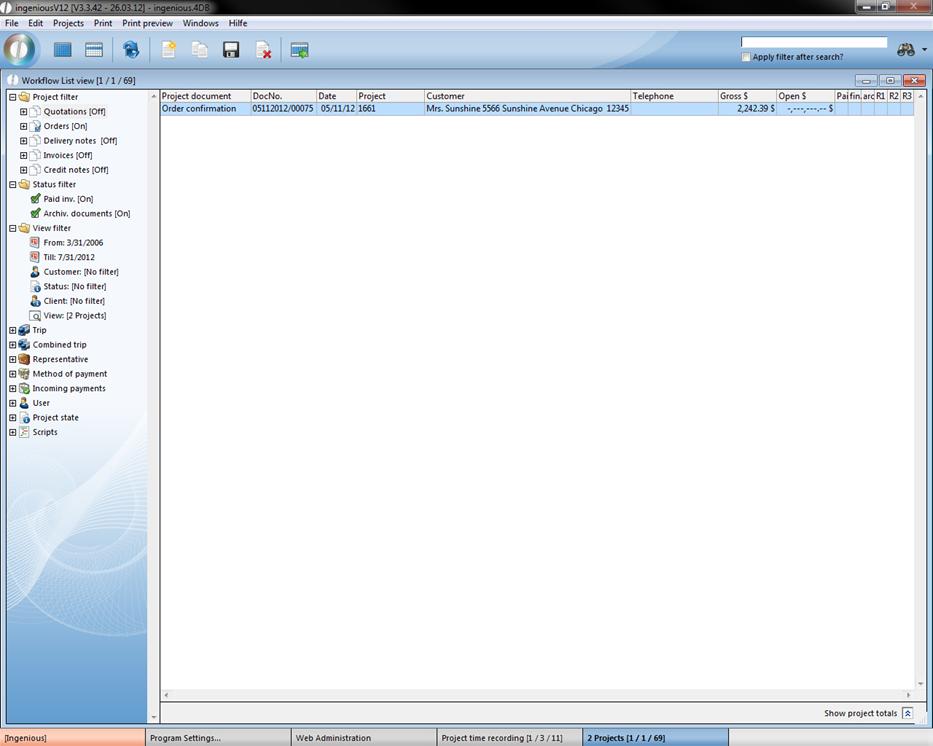
Therewith your customers can use your created web service you have to enable the corresponding rights. Call up the contact detail view of any contact. In the menu entry “Web service” check the field “Allow Web Services” and enter the desired password in the field.
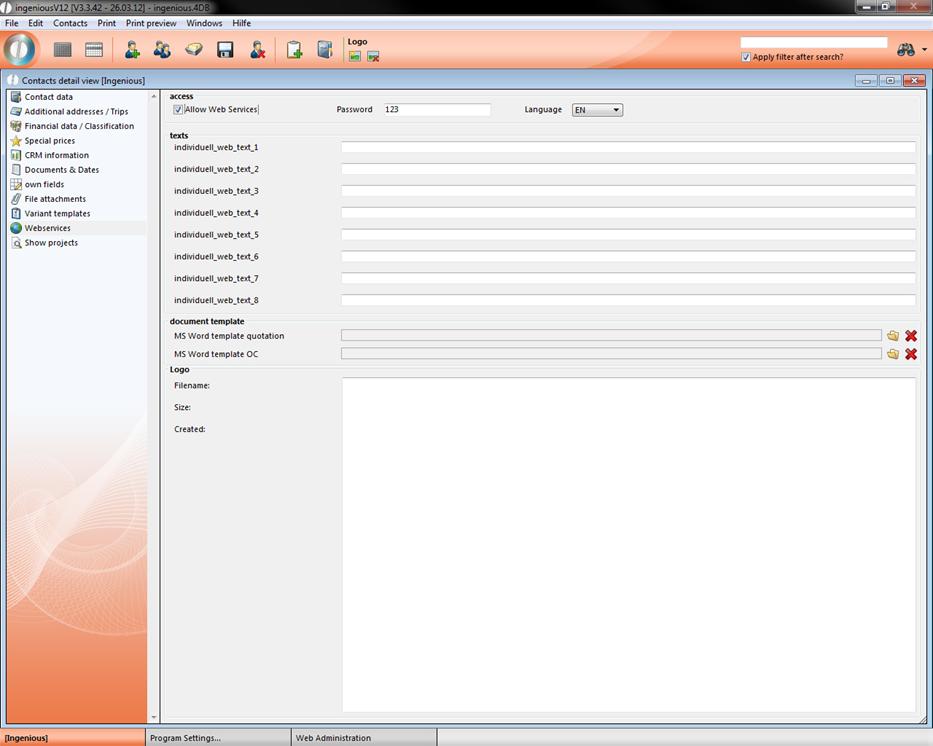
Here it is also possible to add a logo for your customer. This can be added to quotes, orders, etc. in the documents.
Also it is possible to preset the language of the customer. But every customer has the opportunity to change the desired language in the login screen again.
6.4. Web access for sales reps
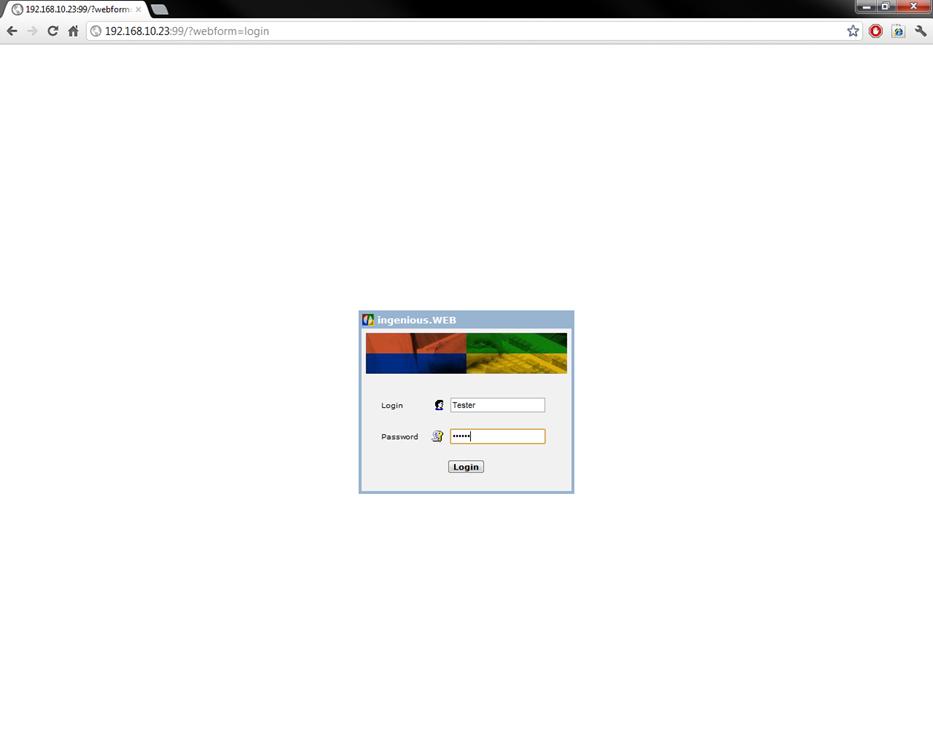
When you start the web access login and password of the employee will be requested.
The different modification possibilities in the web access are listed in the following:
Dates:
- Selection for single user or display all dates
- Toggle between day, week and month view
- Creation of dates with assignment to a representative and a customer
- Selection of a activity category
- Selection of the start time and the length in a quarter of a hour rhythm
- Opportunity to save the date as a note in the contact
- Duplicate dates
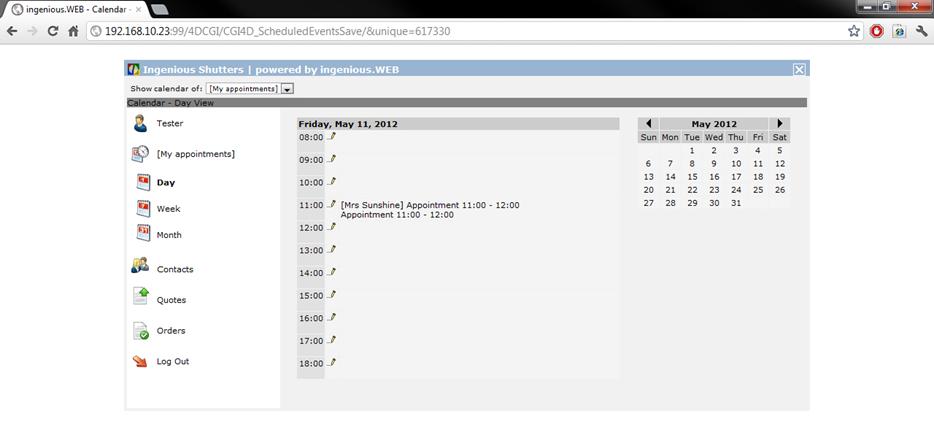
Date view – example: day view
Contacts:
- Access to all contacts in the database
- Search function for names, matchcodes, customer number, postal code and city
- Direct connection to the date creation
- All general contact information: address, representative, telephone, fax, e-Mail, Web
- Information about payment practice, method of payment and delivery limit, opportunity to limit check
- Group membership and tour
- Note field
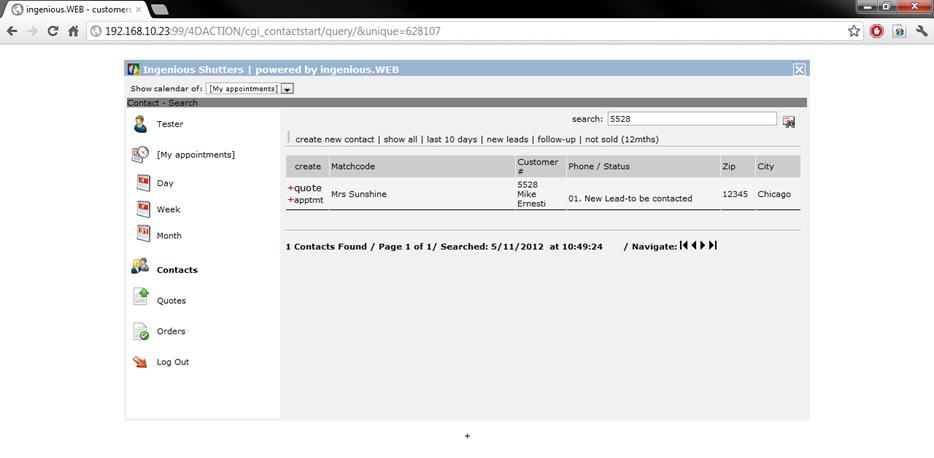
Contact list view
In the contact list view next to every contact you can find two links. With “Apptmt” you can create a new report or date or with “quote” a new quote.
When you create a new quote, you can fill the upper area like in ingenious.V12. The job name will be create automatically depending on the program settings.
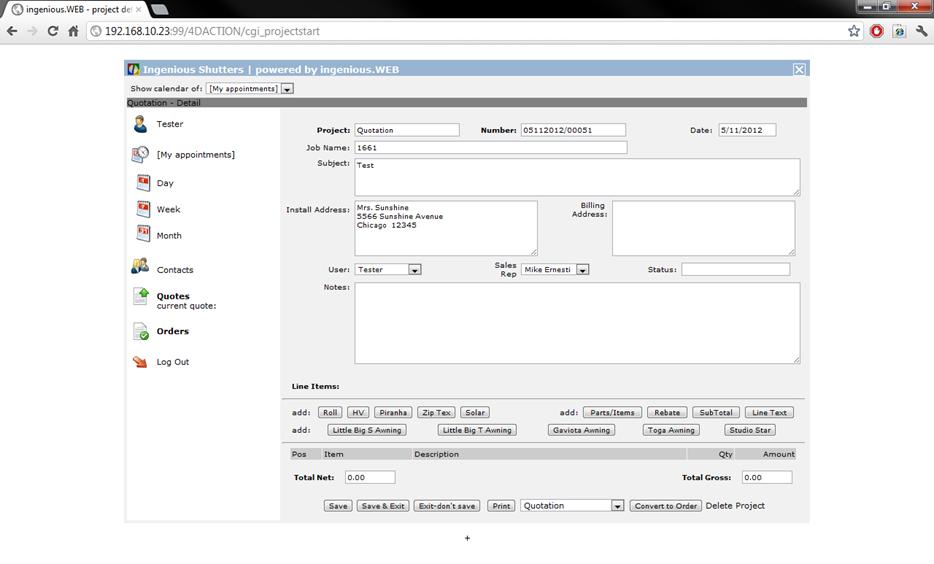
Create example quote
In the lower area you can add items directly with the help of the article buttons. For example click on “Little Big S Awning”, and then the part list for this item will open up, where you can set the desired attributes.
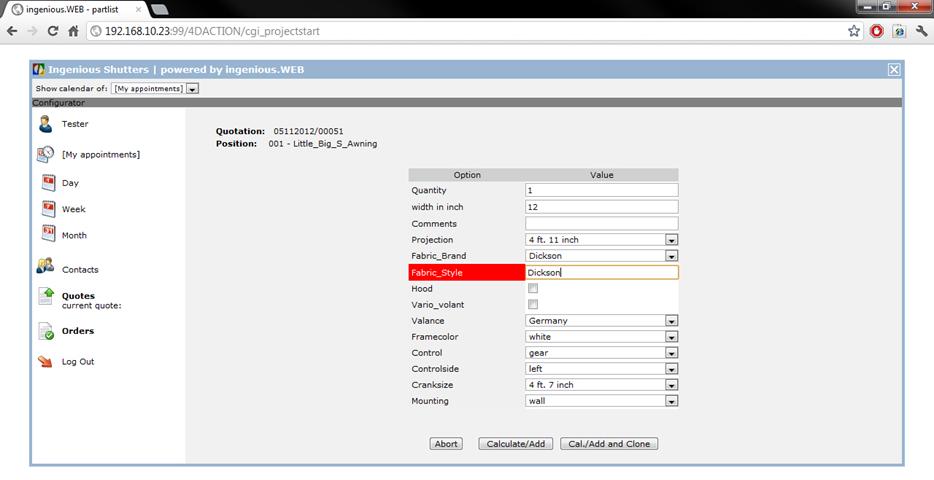
Part list “Little big S awning”
When you click on “Calculate/Add” the item will be added to the project.
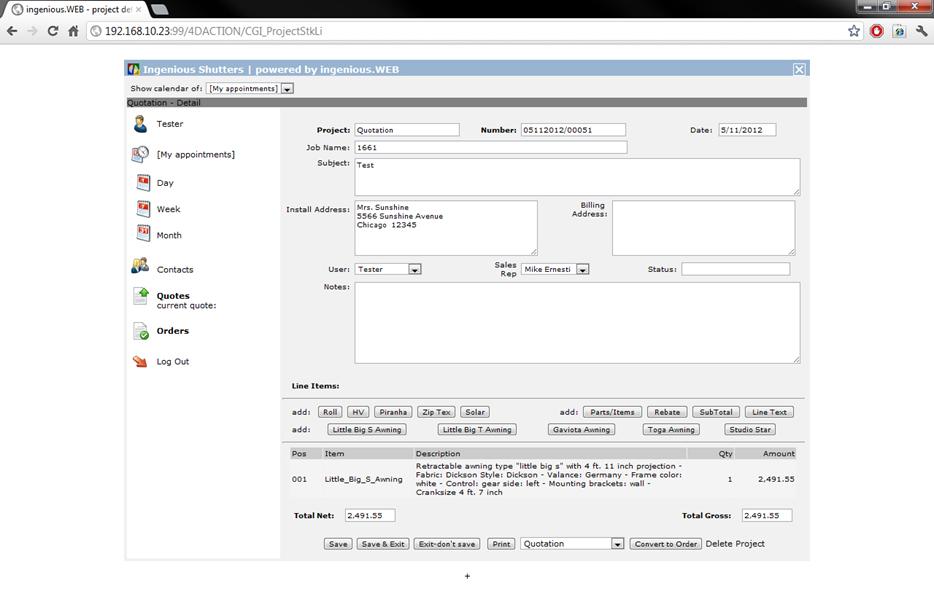
When you click on the item position, the detail view will open up and you can modify or delete the item.
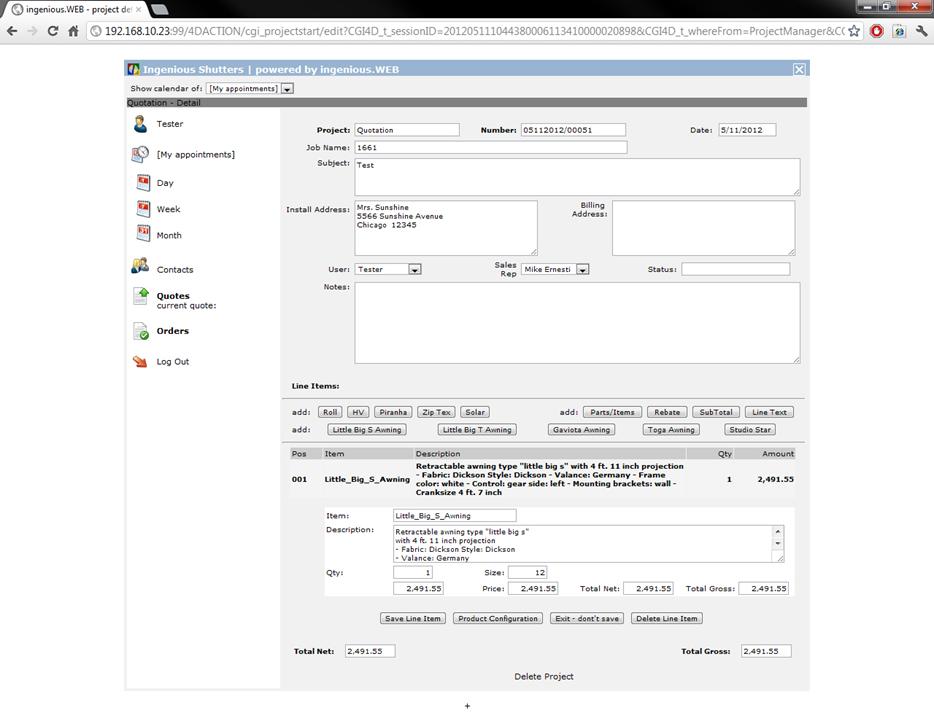
Next to the article buttons you find the item buttons, well known from ingenious.V12.
A new item can be added by entering the matchcode or item number.
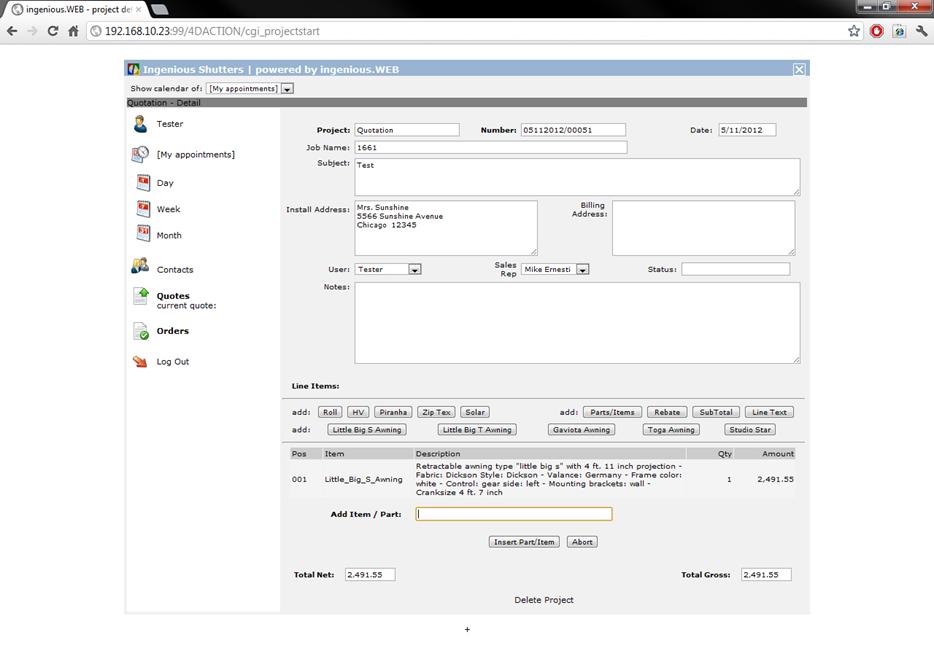
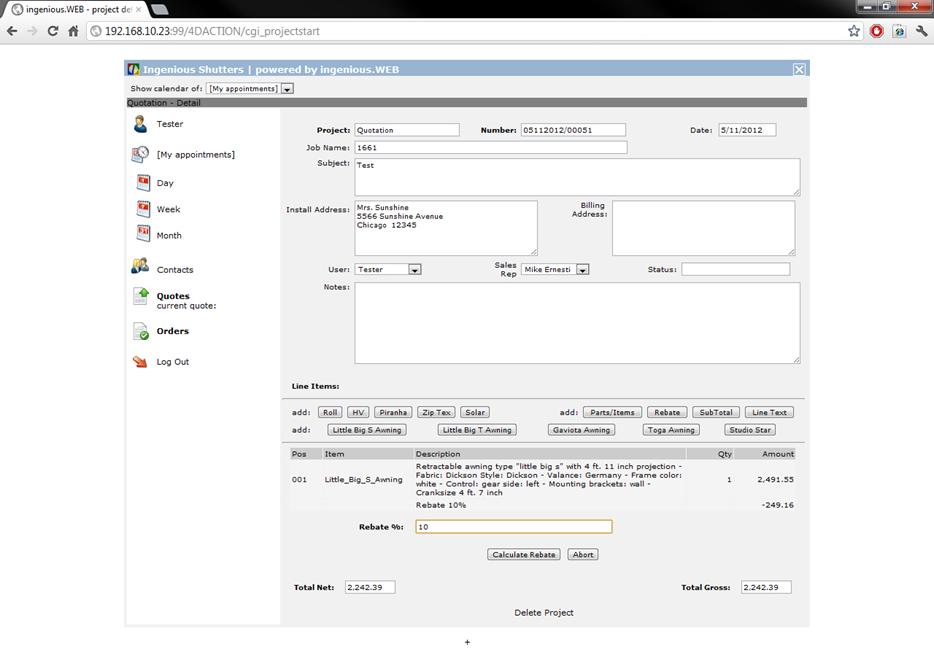
Rebate – Rebate item
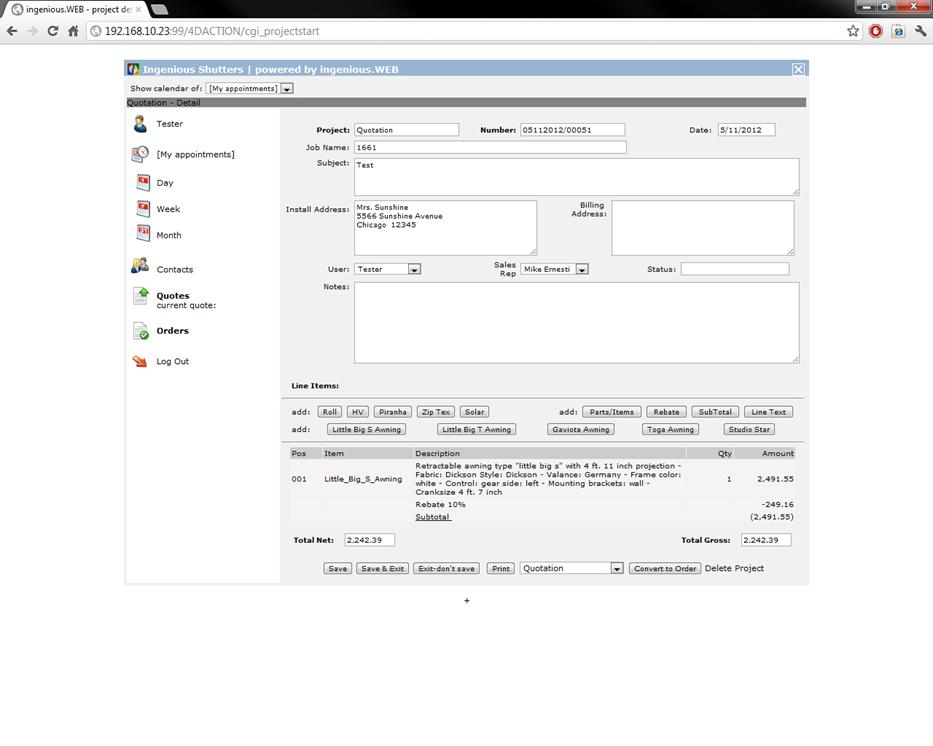
SubTotal
Line Text – Text item
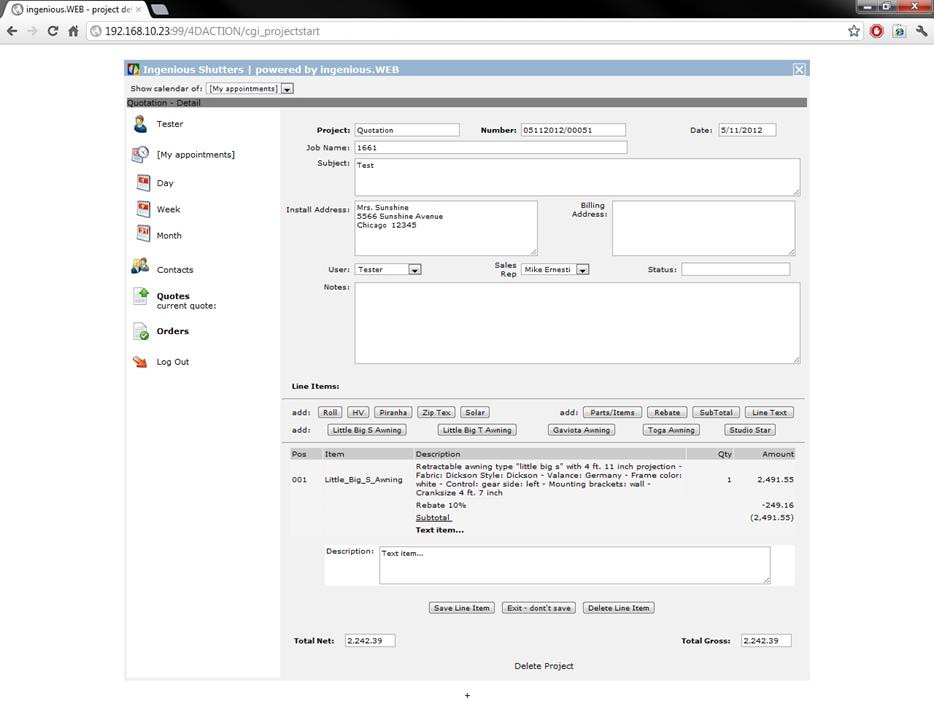
When you want to convert a quote to an order, click in the quote view on the button “Convert to Order”.
You will be automatically get to the order view. Sales reps can’t modify these but view them.
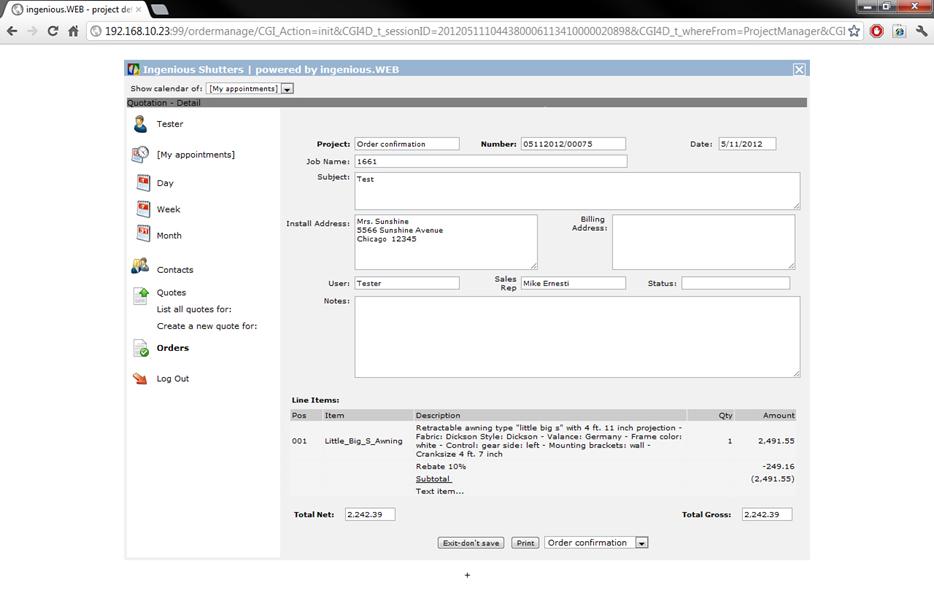
Example order view
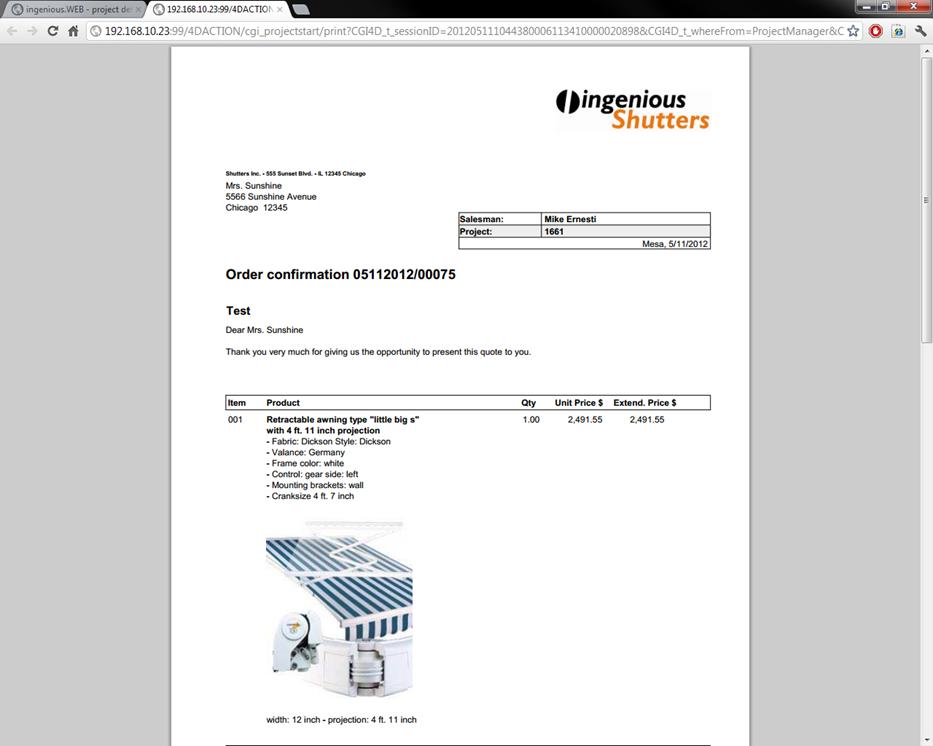
All quotes and orders can be printed by clicking the button “Print”. Then a PDF will be created, that you can save or print with a connected local or network printer.
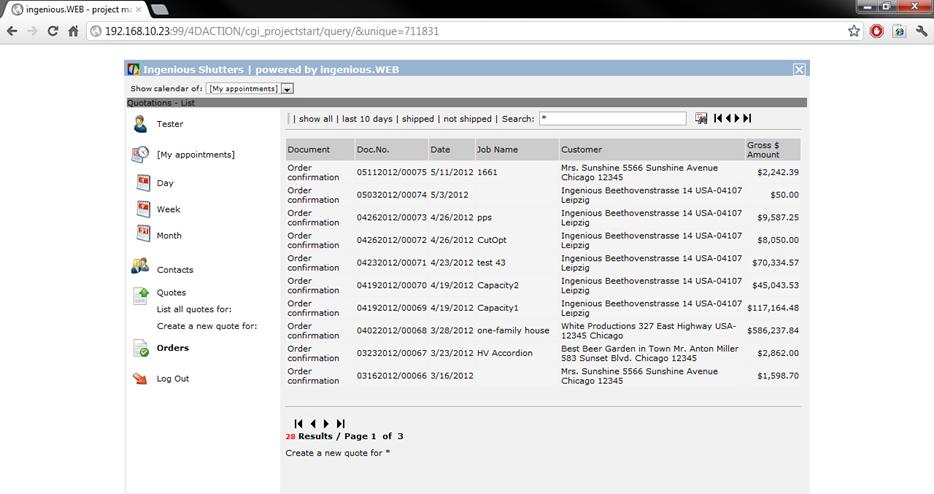
You can search for all quotes, offers and contacts.
Reports:
- Customer specific reports for special prices, sales and customer status in PDF
- ABC customer analyses for single business years for any customers
- Filter for several representatives or all
- CRM analyses for single customers as month or year analyses
- Item statistics for single customers
To leave the Web access click on

All quotes and orders created by the sales reps are saved directly in ingenious.V12. This also takes affect for all B2B – and B2C quotes.